Shiftrio

For employees

Using Shiftrio as an employee

Your manager builds the schedule in Shiftrio; you see your own shifts on your phone and ask for time off and swaps in the app. This page shows how each job is done, with the app’s own screens.

01

Join your team

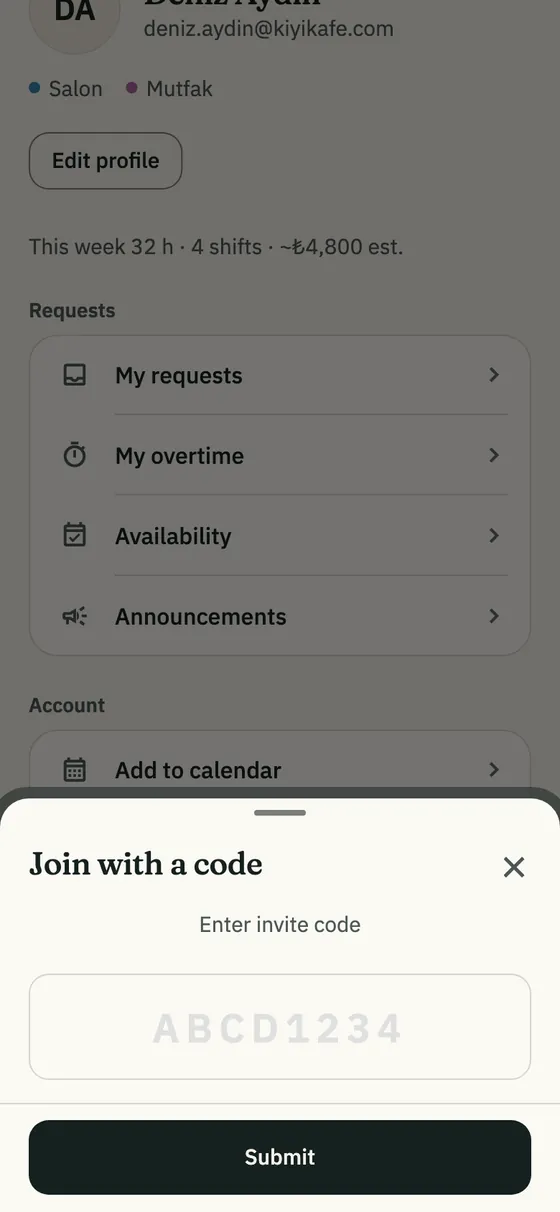
Join with a code

If the link didn’t open, you can type the invite code.

  1. After signing in, choose I’m an employee.
  2. Tap Join with a code.
  3. Type the code your manager gave you and tap Submit. Pasting the whole invite link works too.

TipTo join a second branch later: Profile → Join another branch.

The Join with a code sheet: the invite code field and the Submit button

02

Home

When you open the app, you see your own day first. Pull down to refresh.

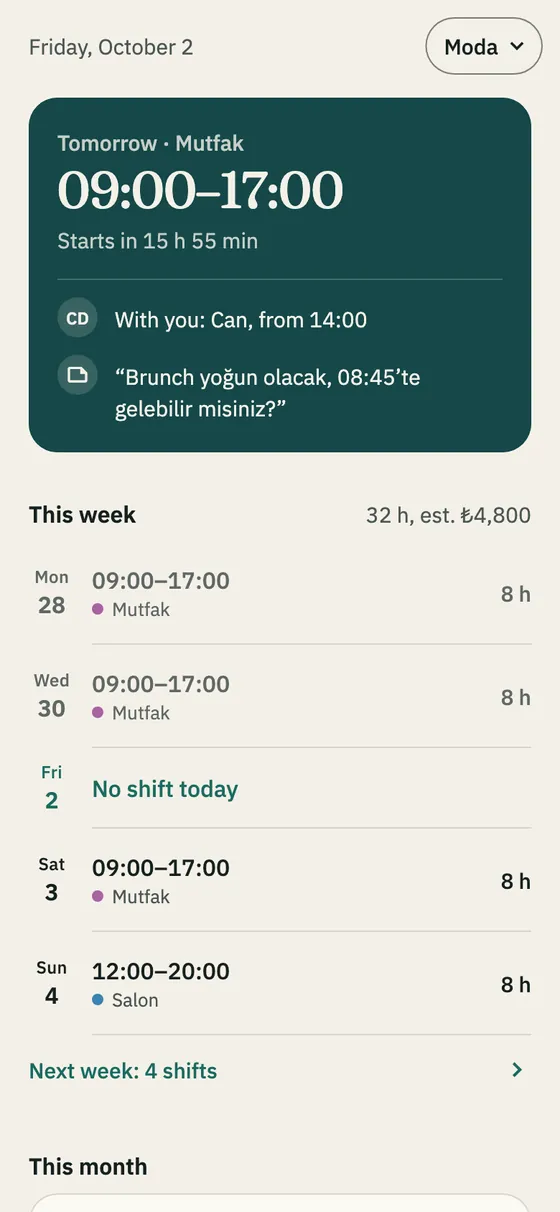
Your next shift and this week

  • The card at the top shows your current or next shift, its department and how long until it starts or ends.
  • It also shows who works the shift with you (With you:) and your manager’s note.
  • This week lists your shifts day by day. On the right: your total hours, and your estimated pay if your manager entered your hourly wage.
  • This month shows this month’s shifts, overtime and estimated pay.
  • Tap a shift to see its date, time, department and note.
The employee home screen: the next shift card and the week’s shifts

Start and Finish (time clock)

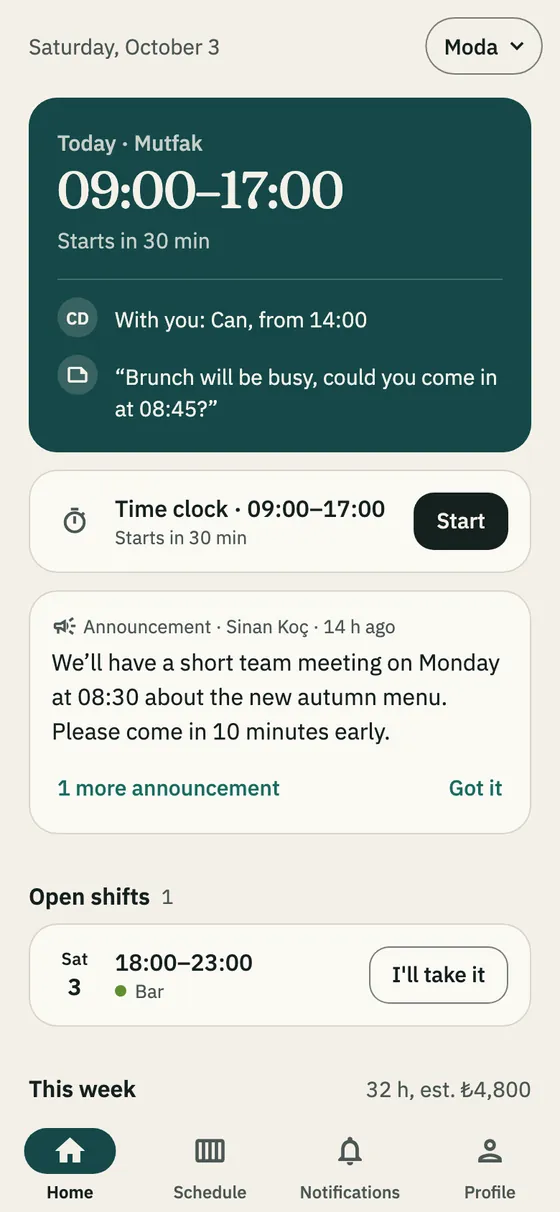
If your workplace uses the time clock, a Time clock card appears on Home an hour before your shift.

  1. When you start work, tap Start. The card shows the time you started.
  2. When your shift is over, tap Finish. The card shows your real start, finish and hours.

TipThe time comes from the server, not your phone. If you forget Finish, the shift is closed at its planned end and marked end taken from the plan; your manager corrects it if needed.

The time clock card on Home with the Start button

Take an open shift

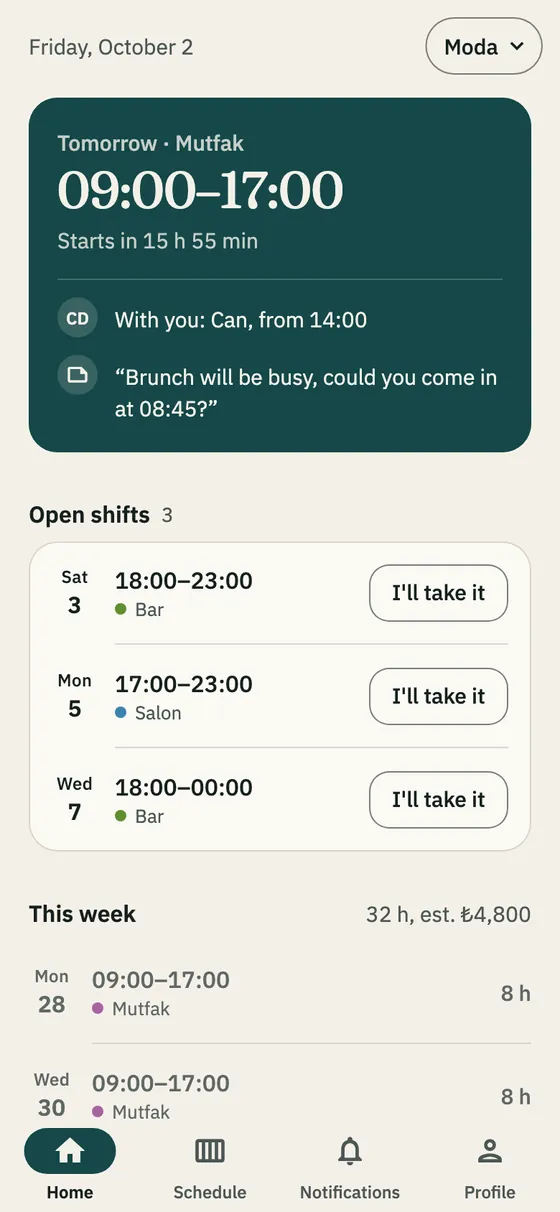
When your manager opens an empty shift to the team, you get a notification and the shift shows on Home under Open shifts.

  1. Tap I’ll take it on a shift that suits you.
  2. When you see The shift is yours., it’s on your schedule.

TipThe first to tap gets it. You can’t take it if you have another shift at that time, you’re on leave that day, or it belongs to another department.

The Open shifts section and the I’ll take it button

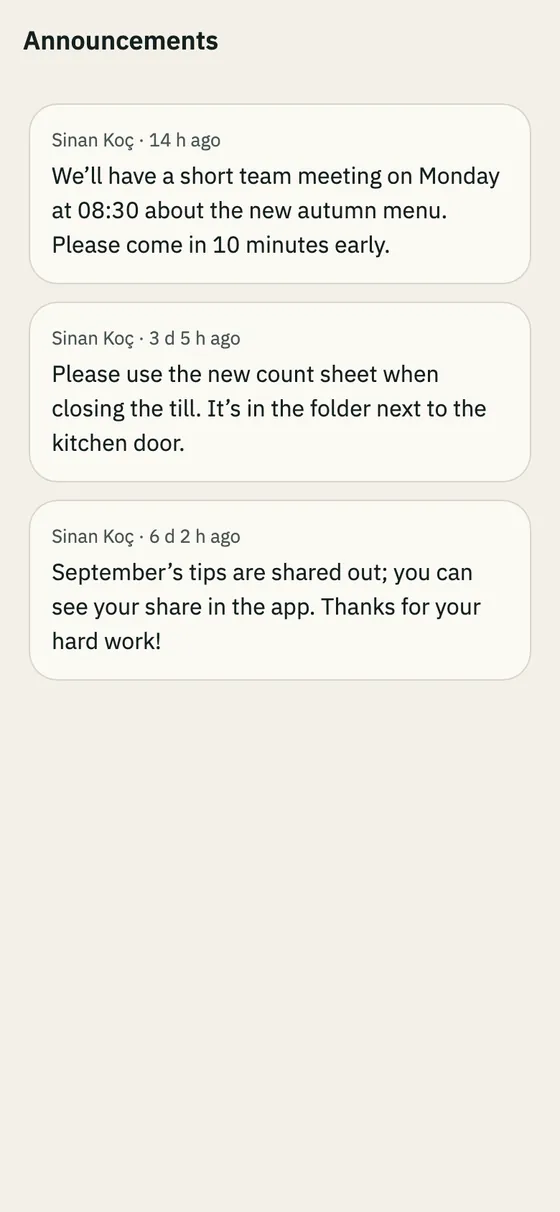
Announcements

Your manager’s announcements appear on Home as an Announcement card.

  1. Tap Got it once you’ve read it.
  2. Every announcement is kept under Profile → Announcements.

TipOpening an announcement marks it as read; your manager sees who read it.

The Announcements page

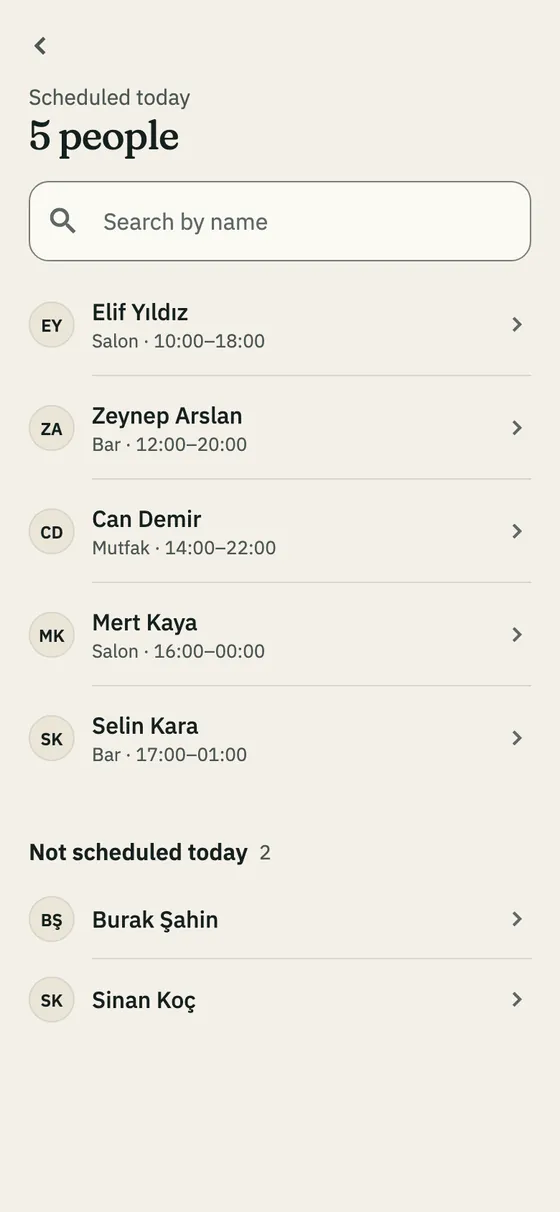
Who’s working today

  1. Tap Scheduled today on Home. You see who is on today, and who is Not scheduled today.
  2. Tap a person to reach them with Call or WhatsApp.

TipTo keep your number private: Settings → Hide my number from coworkers.

The list of people scheduled today

03

Schedule

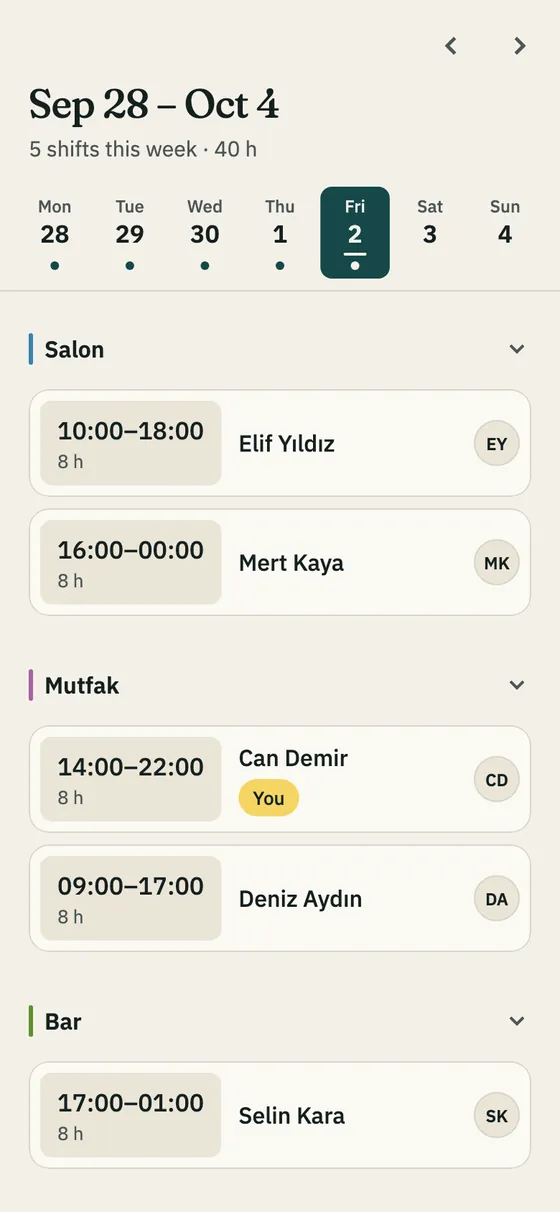
The weekly schedule

The Schedule tab shows every published shift by department; yours carry the You tag.

  • Swipe or use the arrows to change week; tap a day to open it.
  • Weekly View shows the whole week in one table.
  • Tap a coworker’s shift that hasn’t started yet to open the swap form with that shift already chosen.
The weekly schedule as an employee sees it, by department

Add your shifts to your calendar

  1. Tap Profile → Add to calendar.
  2. In the share sheet, pick Apple Calendar or Google Calendar.

TipThe calendar doesn’t update by itself; add your shifts again when the schedule changes.

Home screen widget

The Shiftrio widget shows your next shift and the time left on your phone’s home screen. Add Shiftrio from your phone’s widget menu; on iPhone it also fits the lock screen.

04

Time off, swaps and overtime

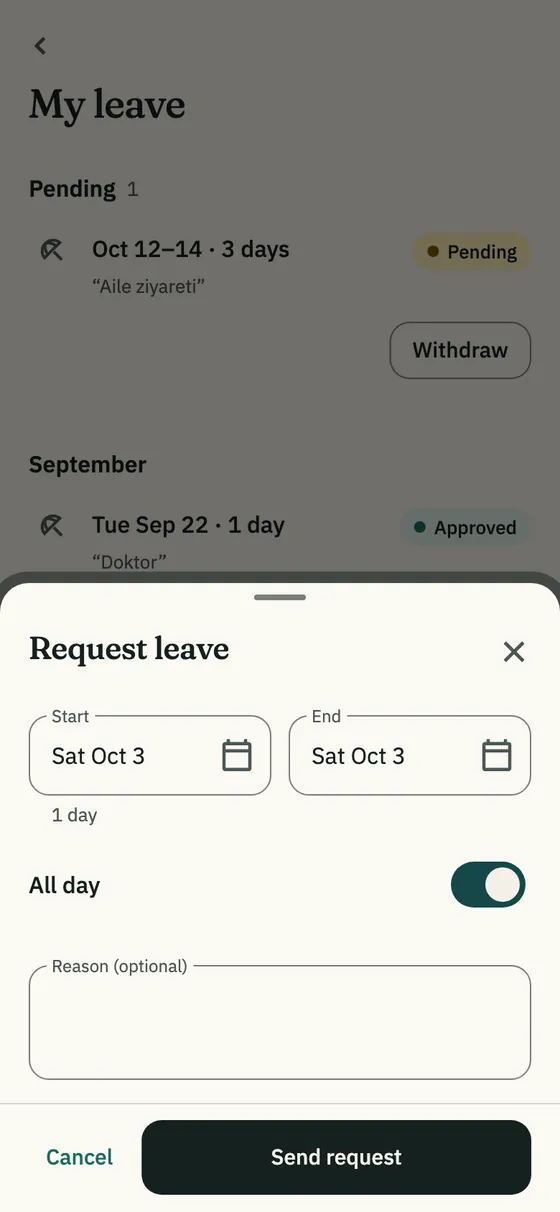
Ask for time off

  1. On Home, tap Request leave, then Request leave again on the My leave page.
  2. Pick the Start and End dates. For a few hours, turn off All day and enter the times; hourly leave is a single day.
  3. Add a reason if you like and tap Send request.

TipIf you have shifts on those days, you’re warned but can still send it. You’re notified of the decision; if it’s rejected, the reason shows on your request.

The Request leave sheet: start, end, all day and reason

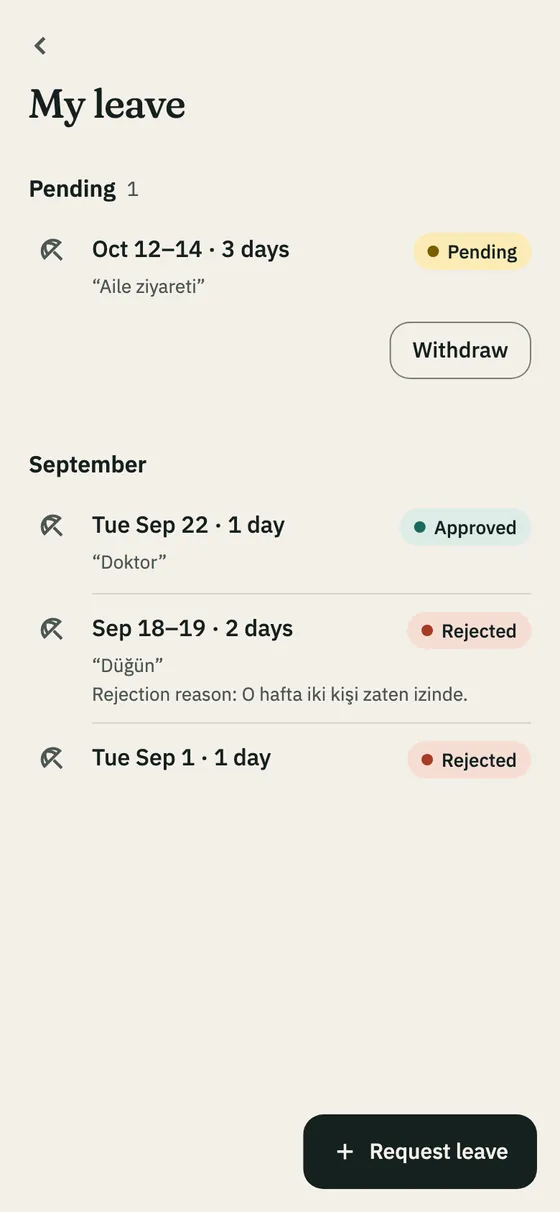
Withdraw a leave request

Only requests that haven’t been decided can be withdrawn. Decided ones are listed by month.

  1. On My leave, find the request under Pending.
  2. Tap Withdraw.
The My leave page: pending and decided requests

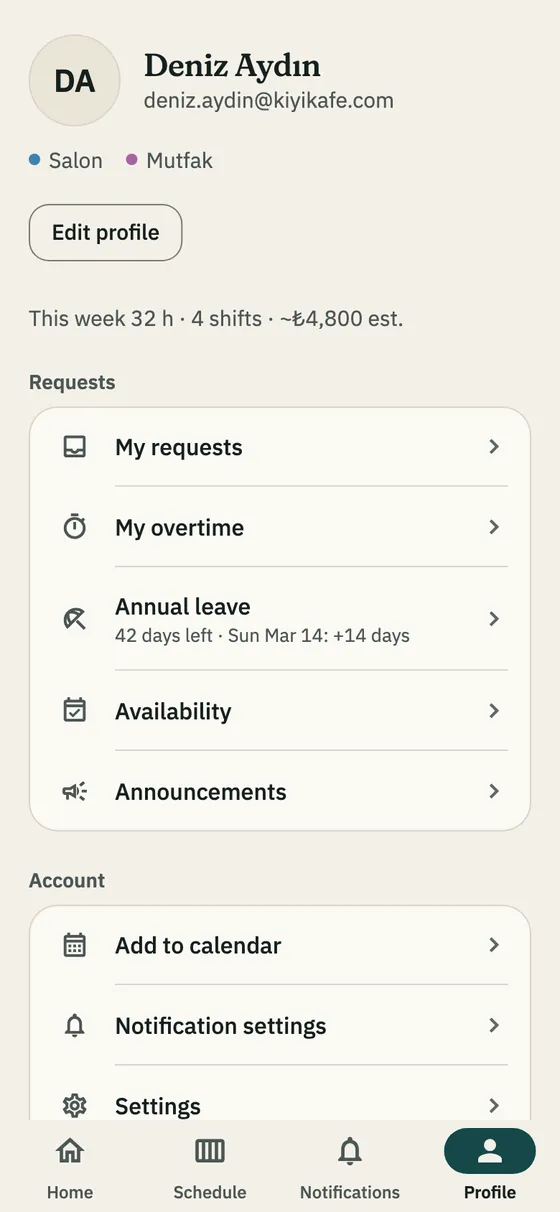
Your annual leave

If your workplace tracks annual leave, Profile → Annual leave shows the days you have left and the date of your next entitlement.

  • Entitlement follows the legal minimum in Turkey by length of service: 14 days up to 5 years, 20 days from 5 to 15 years, 26 days after 15 years.
  • If Take from annual leave stays on when you ask for time off, the workplace’s working days are taken from your balance.
  • If the row says Shows once your manager enters your start date, ask your manager to enter it.
The Profile page: the Annual leave row and requests

Ask for a swap

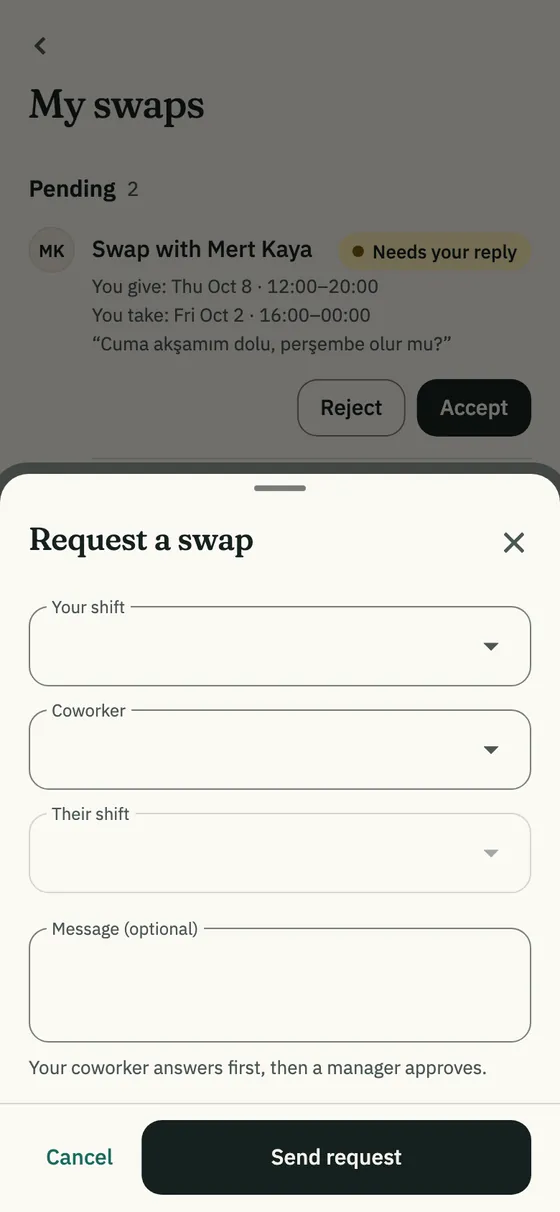
  1. On Home, tap Request a swap, then Request a swap again on the My swaps page.
  2. Under Your shift pick the shift you give, under Coworker the person, under Their shift the shift you take.
  3. Add a message if you like and tap Send request.

TipYour coworker answers first, then a manager approves. A shift that has started can’t be swapped, and a swap that would give you two shifts at once can’t be sent.

The Request a swap sheet: your shift, coworker and their shift

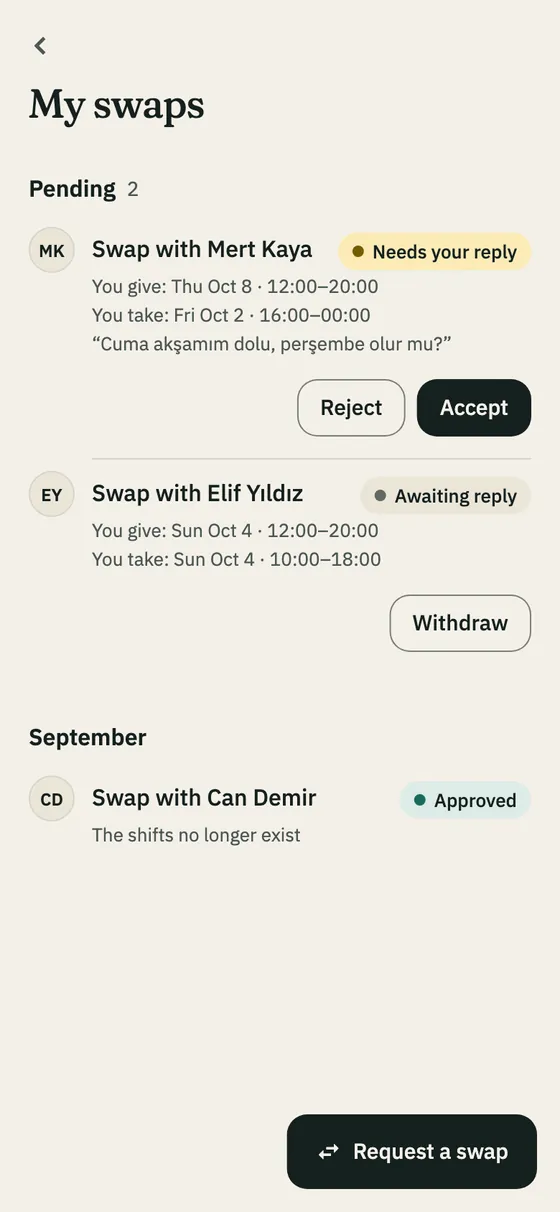
Answer a swap sent to you

Once you accept, the swap goes to a manager; the shifts change after approval. You can cancel a swap you started with Withdraw until a manager decides.

  1. Tap the notification or open My swaps. The request shows Needs your reply.
  2. Read what you give and what you take, then tap Accept or Reject.
The My swaps page: a swap waiting for a reply and the Accept button

Tell your manager when you can work

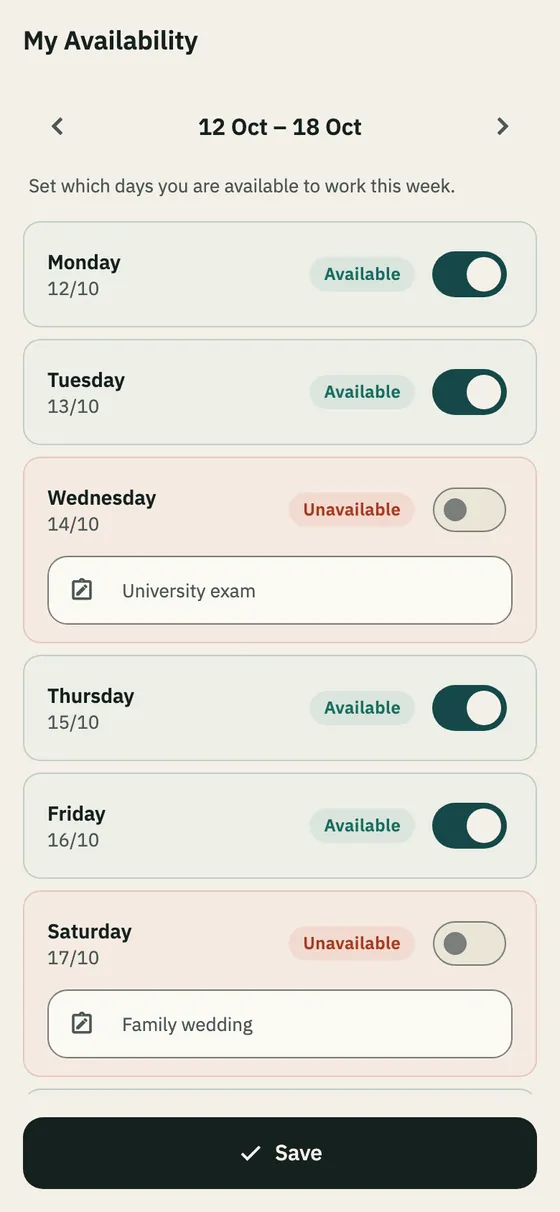
Your manager sees those days when scheduling, and auto-fill skips them. When your manager asks for availability, the notification opens this page.

  1. Tap Availability on Home or in Profile.
  2. Pick the week; switch the days you can’t work to Unavailable, with a note if you like.
  3. Tap Save.

TipFor something that repeats every week (say, school on Tuesday mornings), use Add Constraint to enter the days and times once.

The availability page: available and unavailable by day

Report overtime

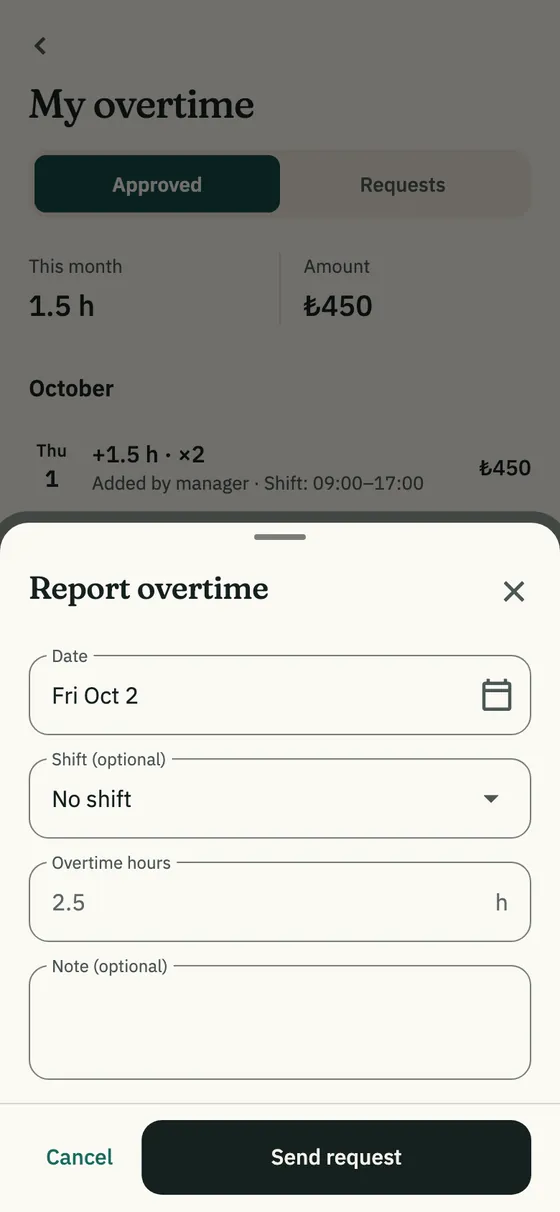
Approved overtime and the overtime your manager added appear under Approved, with this month’s hours and amount.

  1. Tap Profile → My overtime.
  2. Tap Report overtime; enter the date, the shift if there was one, and the hours.
  3. Tap Send request.
The Report overtime sheet

All your requests in one place

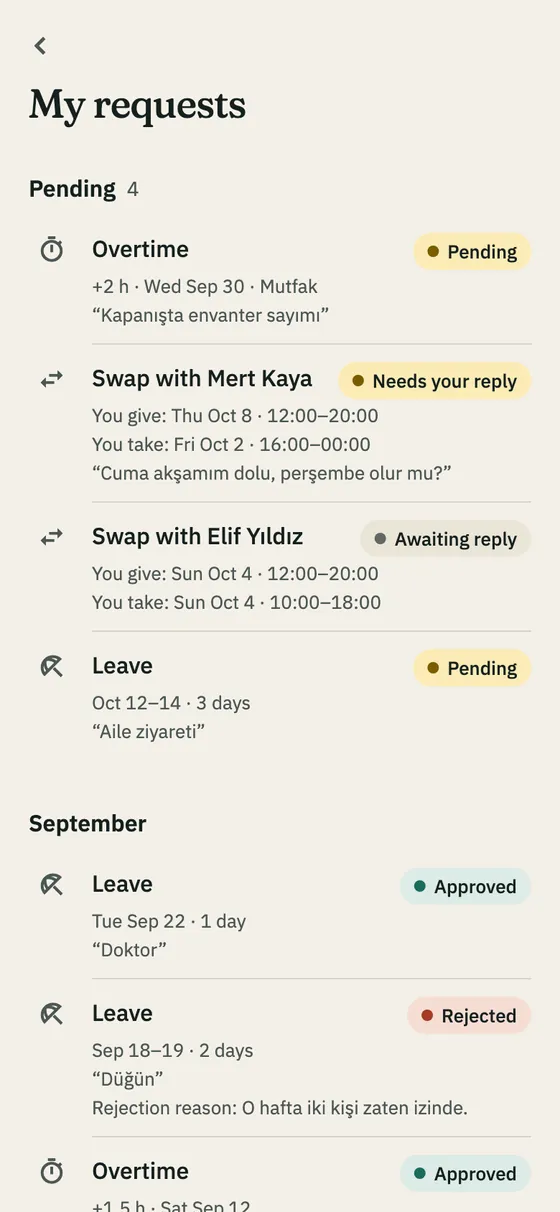
Profile → My requests lists your leave, swap and overtime requests together: pending first, decided ones by month. New request starts a new one from here too.

The My requests page

05

Notifications and account

Notifications

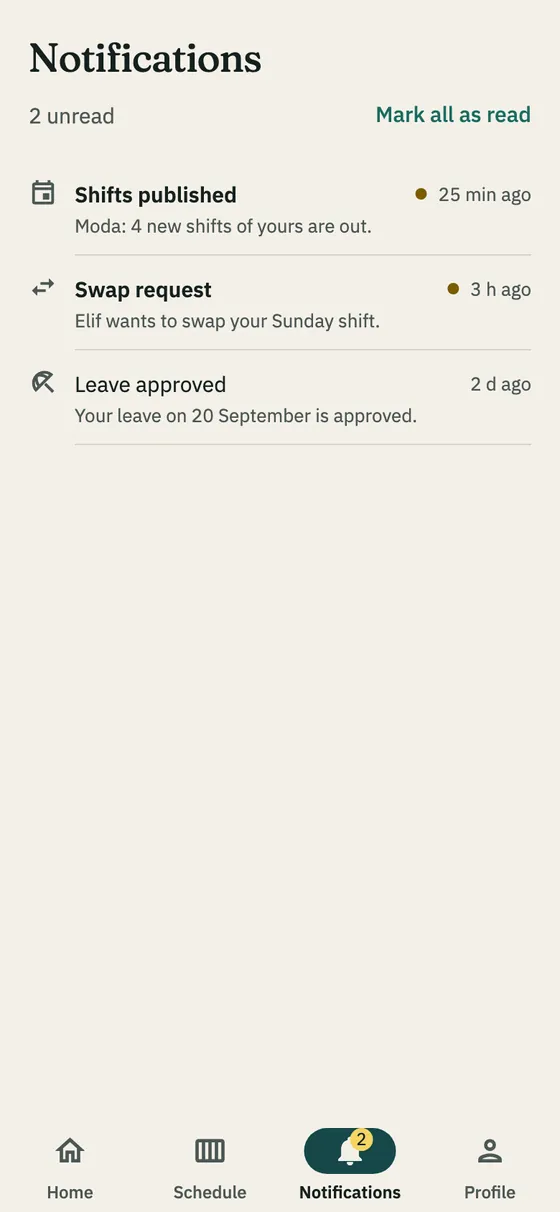
The Notifications tab lists everything sent to you; tapping one opens the page it’s about.

  • Swipe left to delete.
  • Mark all as read clears the unread count.
The Notifications tab

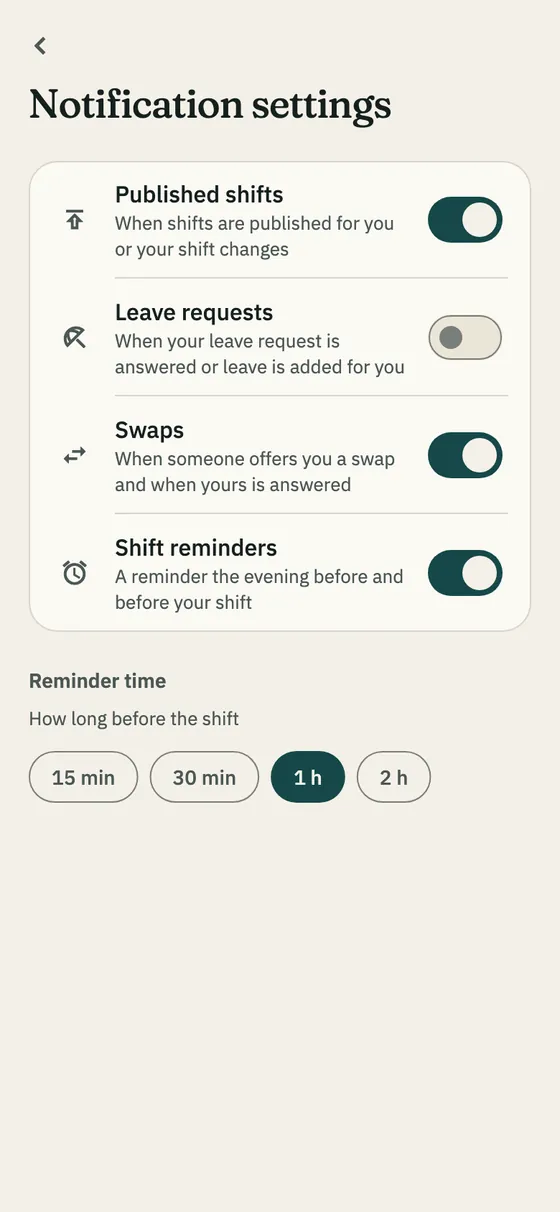
Shift reminders

With Shift reminders on, you’re reminded at 20:00 the evening before and again at the time you picked.

  1. Tap Profile → Notification settings.
  2. Turn on the notifications you want and off the ones you don’t.
  3. Under Reminder time, pick how long before a shift you’re reminded: 15 min, 30 min, 1 h or 2 h.
Notification settings and reminder time

Profile and settings

  • Profile → Edit profile changes your photo, name and phone number.
  • Settings sets the appearance (System, Light, Dark) and the language (Türkçe, English).
  • For a problem or an idea: Settings → Support → Submit Ticket.

Leaving a branch, deleting your account

  • Settings → Leave branch: to come back you need a new invite.
  • Settings → Delete account: your account and data are deleted for good.

Get Shiftrio

The week’s schedule, on your team’s phones.

Free for up to 10 people, every feature on every plan. On iPhone and Android, in English and Turkish.

If you’re a manager: Manager guide

Can’t find what you need? Write to us from Settings → Support in the app, or by email: support@shiftrio.com